WordPress tools
Update core, plugins and themes with a snapshot first, manage admins, and log in to wp-admin from the panel.
WordPress tools, step by step
-
1
Check for updates
One click lists core, plugin and theme updates through wp-cli. Update one row, or all of them.
-
2
Update with a snapshot first
Leave “Take a snapshot first” ticked. If an update breaks something, restore the site as it was.
-
3
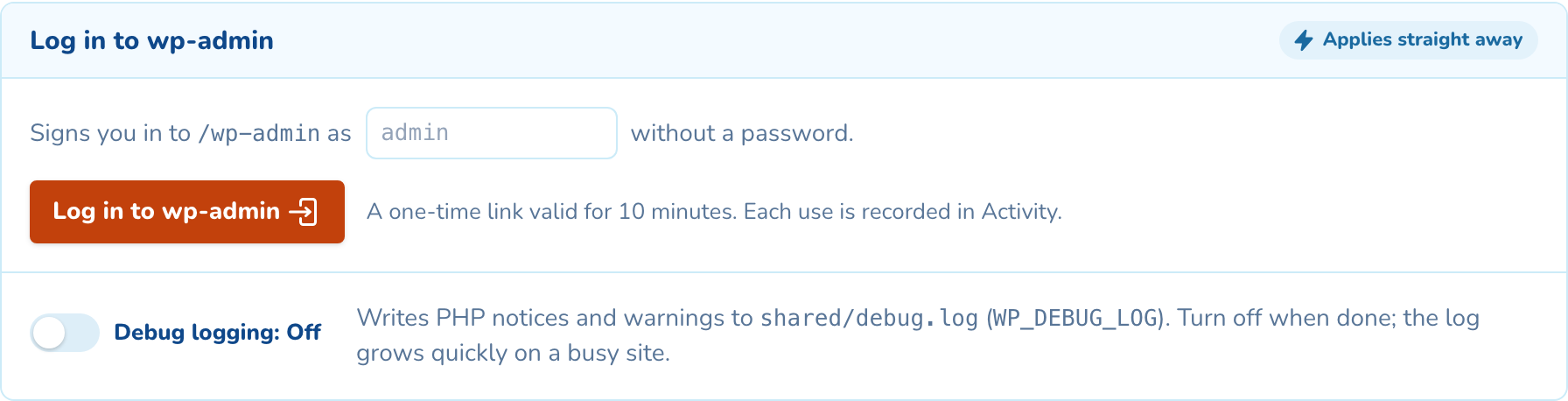
Log in without a password
Make a one-time wp-admin link for an administrator. It works once and expires after 10 minutes.
-
4
Reset or add an admin
Set a new password or create an administrator. The panel shows the password once and does not keep it.
As your team will see it
Questions about wordpress tools
You decide when. The panel lists what is out of date and runs the update through wp-cli with a snapshot first, so a bad plugin release is one restore away. Every run and its output is kept in Activity.
Yes. Every site has SSH, SFTP and a browser terminal, with wp-cli ready to use. The panel covers the everyday jobs, so nobody needs a shell to update a plugin.
Updates change the files in the current release, and the next deployment puts them back. On a Git site, update the plugin in your repository and deploy.

See wordpress tools on your own cluster
Tell us how many sites you run and on what. An engineer sizes a cluster with you and shows you the panel on a live one.